Export and Import of User
You may download a per-scenario snapshot of your user credentials by using the Download button in the User Management view.
You will recognize the scenario identifier in the downloaded file's name to match it to its source. For example, the file:
LOCAL_ORC_f687688f-13de-42ed-8b58-d42b8bb3c206.cred.xml
refers to the credentials of scenario f687688f-13de-42ed-8b58-d42b8bb3c206 on the Orchestra node LOCAL_ORC.
The filename convention is only relevant when exporting the credentials and is not necessarily required for importing files via the Autodeployment service.
Exporting User Credentials
You may download a snapshot of the current user in your Orchestra runtime by using the Download dialog with the appropriate selection:
- Check the "Include Runtime users" option to export the runtime users (needed role security.export.runtime).
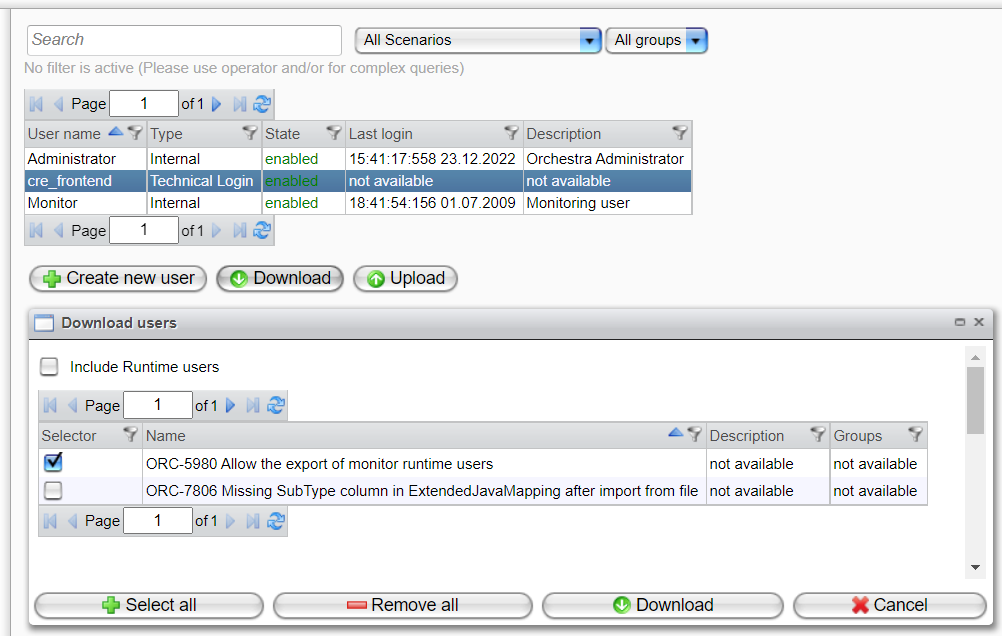
You will recognize the Orchestra node name and (optionally) the scenario and entry identifiers in the downloaded file's name to refer to a specific entry. If you have downloaded more than one scenario, the filename will appear as follows: LOCAL_scenarios.cred.
Importing User Credentials
To import a previously created credential file into your Orchestra runtime, you may use the Upload button in the User Management view. The import mechanism automatically detects the targets of the uploaded configuration based on the file's content.
A dialog will be displayed that requires you to select a credential file.
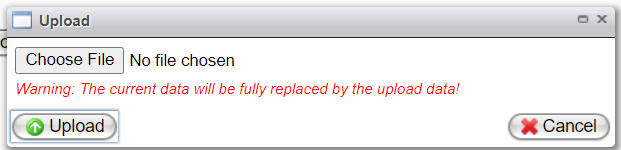
Click "Choose File" to select a file on your local machine. Then, clicking "Upload" will initiate the upload process and import the credentials.
The current data will be overwritten with the uploaded data!